


How to Personalize the 2026 Ford SYNC 4A Home Screen for Faster Controls & Navigation
The 2026 Ford Ranger and F-150 both come with Ford SYNC 4A. It’s standard across the board, from the base Ranger XL to the F-150 King Ranch, so you don’t need to climb the trim ladder to get it. Spending a few minutes personalizing the SYNC 4A home screen and its dash cards can meaningfully cut down the time you spend hunting through menus while driving. Spending a few minutes personalizing the SYNC 4A home screen, its dash cards, shortcuts, navigation, and voice commands can meaningfully cut down the time you spend hunting through menus while driving.
Our team at Stivers Ford South works with these systems daily, and we’re happy to walk you through setup in person if you’d rather see it hands-on.
SYNC 4A vs. SYNC 4: What Ranger and F-150 Owners Should Know
Ford is precise about what separates the two systems, and the list is shorter than most people expect. SYNC 4A adds Adaptive Dash Cards, plus automatic placement of your most frequently used items at the top of the screen. That’s the difference. Enhanced Voice Recognition, Connected Navigation, over-the-air updates, and the 8-inch to 15.5-inch screen range are all shared across SYNC 4 and SYNC 4A. One more thing worth knowing before you shop: SYNC 4 cannot be upgraded to SYNC 4A.
| Feature | SYNC 4A | SYNC 4 |
|---|---|---|
| Adaptive Dash Cards | Yes | No |
| Auto-placement of frequent items at top of screen | Yes | No |
| Screen size range | 8″ to 15.5″ | 8″ to 15.5″ |
| Enhanced Voice Recognition | Available | Available |
| Connected Navigation | Available | Available |
| Wireless Apple CarPlay / Android Auto | Yes | Yes |
| Over-the-air software updates | Yes | Yes |
| Upgradeable from SYNC 4 | Not possible | – |
Wireless Apple CarPlay and Android Auto come standard across the Ranger lineup, so no cable required. Screen size is where the trims actually diverge: the Ranger XL and XLT run a 10.1-inch center touchscreen, with the 12-inch display arriving on the Lariat and Raptor, or on the XLT through the High Equipment Group. The F-150 takes a simpler approach, pairing a 12-inch touchscreen with a 12-inch digital gauge cluster as standard equipment across the lineup.
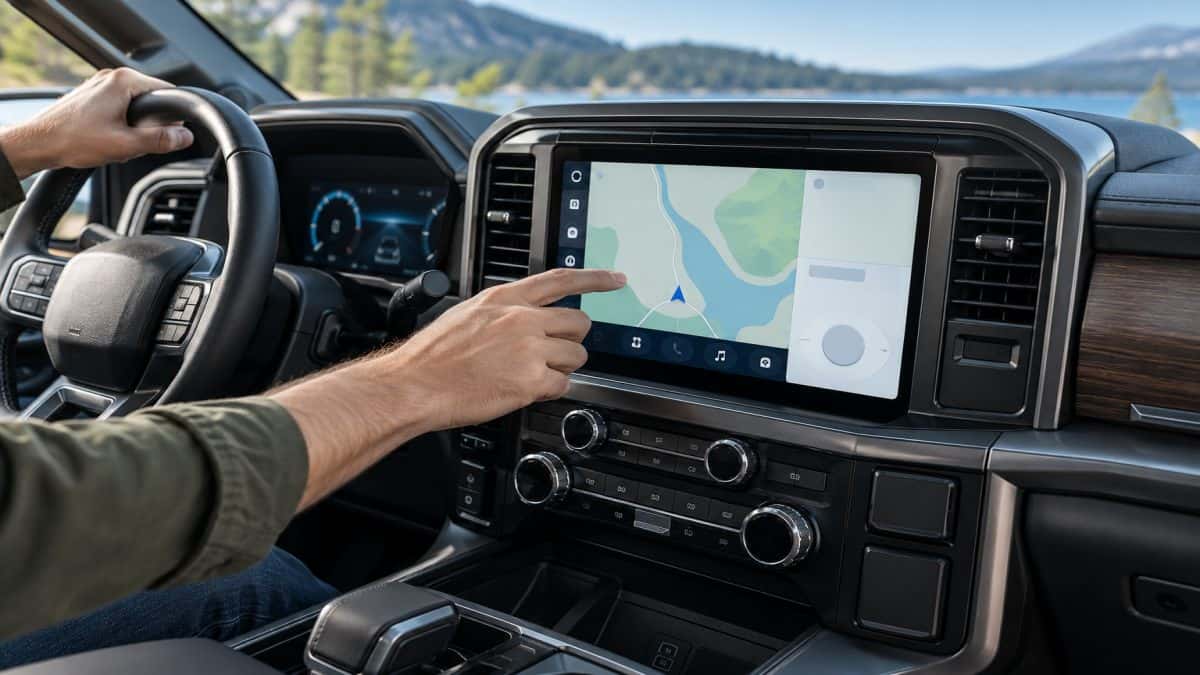
Getting Started: Confirming Your SYNC 4A Software Is Up to Date
Before customizing anything, check that your software is current. Ford rolls out over-the-air (OTA) updates periodically, and those can add features or shift how menus behave.
-
Go to Settings on the SYNC 4A home screen.
-
Select About or System Information.
-
If an update is available, follow the prompt to install it. Your vehicle needs a Wi-Fi connection for OTA downloads.
-
Turn on Automatic Updates so future updates install without manual steps.
Rearranging and Resizing Dash Cards for Faster Access
Dash cards replace traditional menus with interactive digital cards for navigation, media, phone, and more. The key thing to understand is that they arrange themselves. SYNC 4A builds a personally tailored collection based on which cards you use most and which you used most recently, and the card you’re currently using appears enlarged at the top of the screen.
What you do with them is tap. Pause or skip a song straight from the audio card. Make a call or hang up from the hands-free communication card. Pull up navigation without digging through a menu. The system learns your patterns over the first few weeks, which means the personalization mostly happens whether you think about it or not.
Daily commuters tend to like a larger navigation card paired with a compact climate card. Long-distance drivers often prefer a bigger media card next to fuel range and trip data. If a card won’t reorder or a layout resets after an update, restart the system by holding the power button, then confirm your software is current under Settings > About.
Setting Up Shortcuts for Frequently Used Features
SYNC 4A includes a persistent shortcut bar at the bottom of the home screen for one-tap access to destinations, media sources, contacts, or feature toggles like heated seats.
-
Open Settings and select the customization menu.
-
Choose the functions you want in your shortcut bar.
-
Save the configuration. It persists across future drives.
Personalizing Navigation for Your Daily Drives
Navigation preferences shape how routes calculate and how the map behaves. Open the navigation app’s preferences section to set a default route type (fastest, shortest, or traffic-avoiding), adjust turn-by-turn voice guidance, and enable automatic rerouting based on real-time traffic.
Pinning Favorite Destinations
-
Navigate to a location on the SYNC 4A map.
-
Tap it to open the details panel.
-
Select Save as Favorite and assign a custom label.
Pinned destinations then show up on the navigation home screen for one-tap routing.
Enabling Predictive Route Suggestions
Connected Navigation can suggest routes proactively based on your driving history and current traffic.
-
Go to your SYNC 4A privacy and personalization settings.
-
Turn on driving history tracking.
-
The system starts surfacing route suggestions as it learns your patterns.
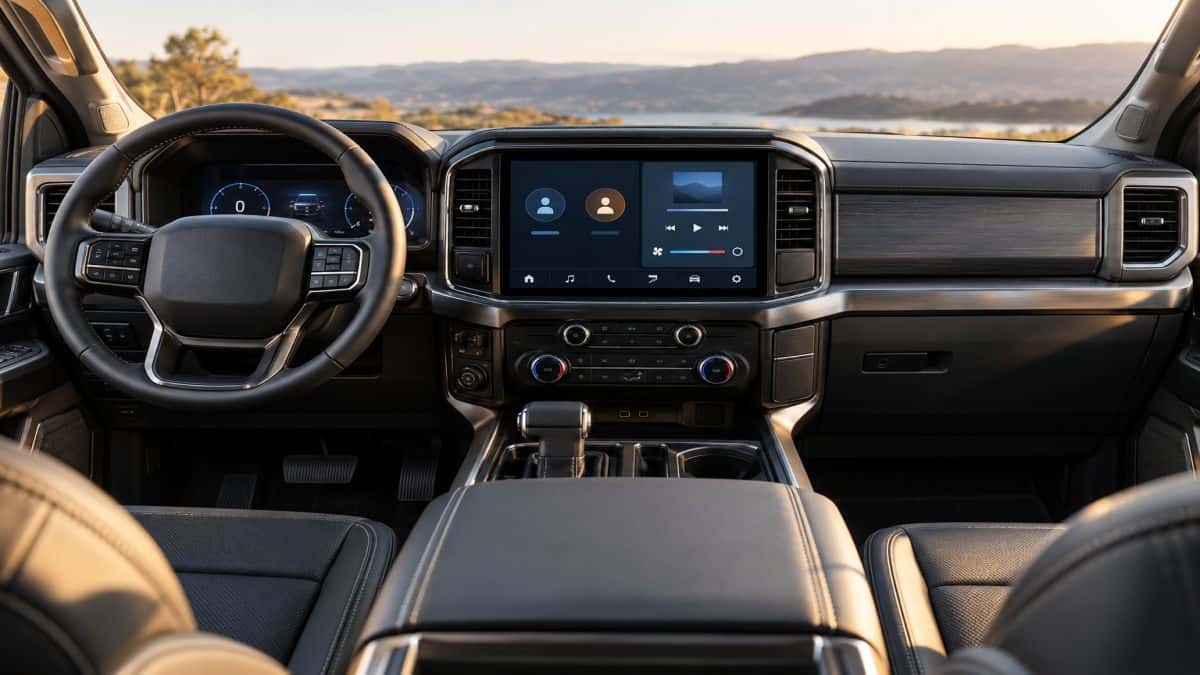
Creating Driver Profiles for Shared Trucks
Driver profiles store individual preferences such as home screen layout, seat position, climate settings, and audio preferences, separately for each driver.
-
Open Settings and select Driver Profiles.
-
Create a new profile and enter a name.
-
Set a PIN if you want the profile protected.
-
Select your profile at startup to load your saved layout automatically.
This comes in handy in households or fleets where multiple people share the same truck, since each driver’s widgets and shortcuts stay separate. If you’d like hands-on help setting up multiple profiles on your specific trim, schedule a service visit and our team will walk through it with you on your vehicle.
Using Voice Commands to Customize Faster
Enhanced Voice Recognition gives you cloud-based conversational voice commands, so you can speak naturally instead of memorizing exact phrasing. Press the voice button on the steering wheel and say what you want. For more involved customization tasks, voice commands can open specific settings menus directly, often faster than tapping through several screens manually.
Our team can demonstrate the full command set on an actual truck, which is faster than working through a list. Bring your questions and we’ll show you what the system handles well and where you’ll still want the screen.
Keeping Your Setup Optimized After Ford Updates
Ford’s OTA update cycle means SYNC 4A will keep evolving, and updates can occasionally reset personalized settings to default. After any major update installs, take a few minutes to check your home screen layout, shortcut bar, driver profiles, and navigation preferences. Settings usually carry over cleanly, but if they don’t, restoring your configuration only takes a few minutes.
Schedule Your SYNC 4A Demo at Stivers Ford South
Why See It In Person
Reading through menu steps only gets you so far. Our team can walk you through dash card setup, driver profiles, and navigation configuration on an actual vehicle, which usually clarifies things faster than any written guide. We carry new Ford vehicles with SYNC 4A, so you can compare screen sizes and feature layouts side by side rather than guessing from spec sheets. If you already own a Ford with SYNC 4A, bring it in and we’ll get your profiles and preferences configured before you leave.
Book Your Visit
Ready to see SYNC 4A in action? Our sales team is available Monday through Friday from 7:00 a.m. to 6:00 p.m. and Saturday from 8:00 a.m. to 4:00 p.m. Contact us to schedule a demo, or stop by and we’ll get you set up on your own vehicle.
0 comment(s) so far on How to Personalize the 2026 Ford SYNC 4A Home Screen for Faster Controls & Navigation