


How to Set Up Ford MyKey on the 2026 Ford SUV Lineup for Teen Driver Safety
Handing your teen the keys comes with natural parental worry. Here at Stivers Ford South in Union City, we help families tackle this milestone with confidence through Ford MyKey setup, a technology that puts safety boundaries directly in your hands. If you’d prefer hands-on help, contact our team to schedule a personalized walkthrough at our dealership.
The Ford MyKey system turns any regular key into a safety tool by programming specific driving restrictions. When you explore 2026 Ford SUVs equipped with this tech, you’re investing in both vehicle capability and parental peace of mind. Considering financing options for a MyKey-equipped vehicle? You can explore financing options tailored to your family’s needs.
Why Ford MyKey Is Essential for Teen Driver Safety
Ford built MyKey as an extra safety layer that works alongside thorough driver education. Instead of reacting to problems, the system tackles common teen driving risks through programmable restrictions. Speed limiters help establish safe highway habits, while audio volume caps reduce distraction from loud music exactly when teens need to focus most.
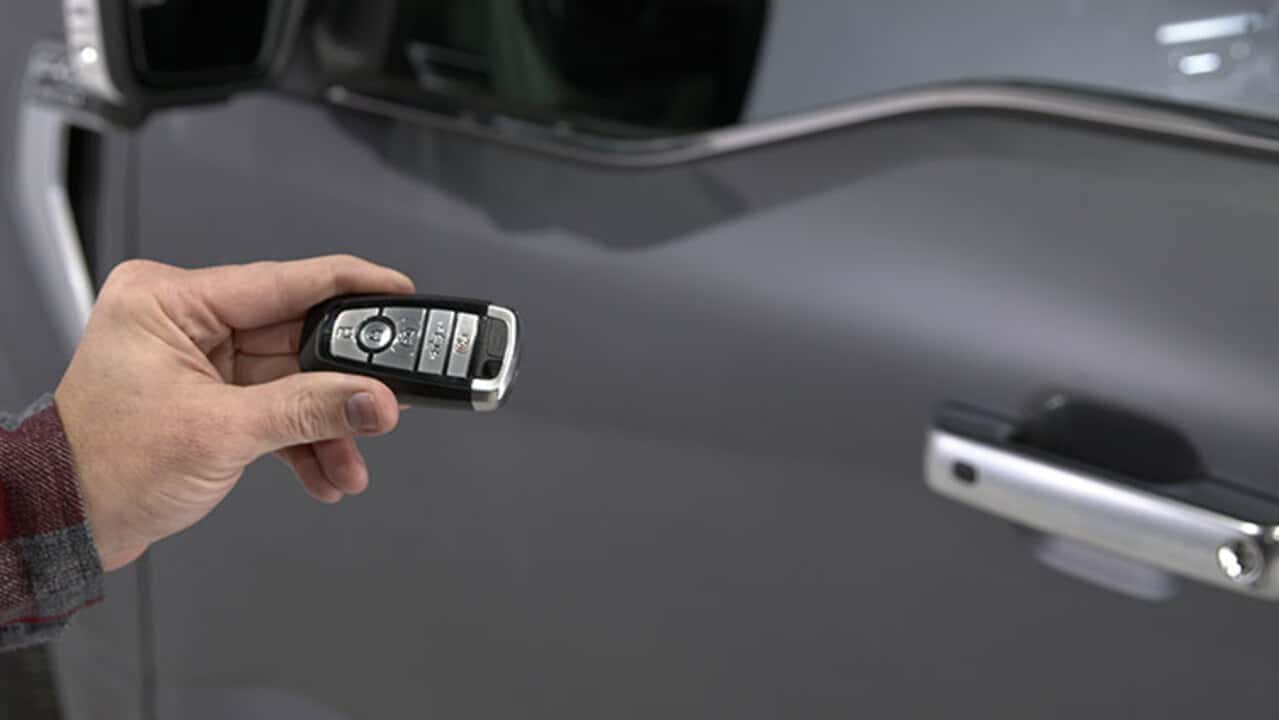
You get two key types: MyKey carries the restrictions you program for your teen driver, while the Admin Key keeps full vehicle functionality and gives you exclusive programming access. Ford requires at least one Admin Key stay available so you never lose system control.
MyKey features kick in automatically once programmed. Belt-Minder mutes audio until driver and front passenger seatbelts click properly, creating immediate feedback that builds safe habits. Lane Departure Warning automatically resets with each vehicle restart even if your teen temporarily shuts it off.
As your teen shows improved skills, you can adjust restrictions using your Admin Key to gradually expand driving privileges that match their growing maturity.
Step-by-Step Ford MyKey Setup Guide
Ford MyKey programming uses your vehicle’s information display or touchscreen interface. The process takes just minutes once you understand the sequence. Our service department can walk you through this setup during your next visit if you prefer in-person guidance.
Prerequisites Before Programming Your MyKey
You need at least two keys before starting. One becomes your teen’s MyKey with restrictions applied. The other stays as your Admin Key with full functionality and programming authority. Programming with only one key won’t work since the system prevents accidentally restricting all keys.
Check that your vehicle’s SecuriLock passive anti-theft system is enabled. MyKey functionality requires this security feature active. For vehicles with keyless start systems, find the backup slot where you’ll place your intelligent access key during programming.
Creating a MyKey Using the Admin Key
Insert your chosen MyKey into the ignition or place it in the backup slot for keyless systems. Start the vehicle, then navigate to Settings > Vehicle > MyKey and choose Create MyKey.
The system displays on-screen instructions that guide you through confirmation steps. Watch for the “MyKey created” message, then press Close and turn off the vehicle to complete the process. You can repeat this for additional keys if multiple teen drivers share the vehicle. Each MyKey maintains identical restrictions.
Customizing MyKey Safety Restrictions for Your Teen
The Ford MyKey system offers multiple restriction categories that target specific teen driving behaviors. These settings activate automatically when your teen starts the vehicle using their MyKey, requiring no extra steps.
Setting Speed Limits and Alerts
Maximum speed limits let you cap your teen’s top speed at 65, 70, 75, or 80 mph, with both visual dashboard warnings and audible alerts when they reach the programmed threshold. The Speed Minder chime provides a separate alert, triggering at 45, 55, or 65 mph, to warn your teen before they approach the absolute limit you’ve set.
Controlling Audio Volume and Media Access
Audio volume restrictions cap maximum system output at 45% of total capacity, ensuring music never reaches distraction levels. You can also block access to explicit satellite radio content, helping create a focused driving environment.
Enabling Seatbelt Reminders and Safety Features
Belt-Minder with audio muting creates a clear incentive to buckle up. The system automatically silences all audio until the driver, and on most models, the front passenger, fastens their seatbelt. Your teen can’t override this feature, reinforcing consistent seatbelt habits on every drive.
Additional features include low fuel warnings that activate earlier than standard alerts. Driver-assist technologies such as BLIS® and parking aids are locked on and cannot be disabled by a MyKey driver. Features like Lane Keeping Alert also reset automatically with each new key cycle even if temporarily switched off.
Managing and Updating Your Ford MyKey Settings
MyKey settings aren’t permanent. As your teen gains experience, you can modify restrictions using your Admin Key through the same settings menu used during initial programming. You might increase speed limits after driver education milestones or adjust audio controls as they demonstrate improved focus, transforming MyKey from a restriction tool into a responsibility ladder.
Consider coordinating setting adjustments with your teen’s graduated licensing progress. Many parents match MyKey restrictions to state licensing requirements, creating consistent expectations across both legal and technological boundaries.
Troubleshooting Common Ford MyKey Setup Issues
Cannot create MyKey: You’re using a key that already carries MyKey programming, only one Admin Key exists in your system, SecuriLock is disabled, or your intelligent access key isn’t placed in the backup slot.
Cannot program MyKey settings: You’re trying to make changes using a non-Admin Key or no MyKeys exist in your system yet. Settings require both an active Admin Key and at least one programmed MyKey.
Cannot clear MyKey programming: You’re not using an Admin Key for deletion attempts. Double-check you’re holding the Admin Key and that MyKeys are actually programmed.
Restrictions not activating: An Admin Key is present in the vehicle at startup (which overrides all MyKey limitations), or no MyKeys have been successfully programmed.
Schedule a Ford MyKey Walkthrough at Stivers Ford South
Our Ford specialists at Stivers Ford South understand that technology works best when you feel confident using it. We offer complimentary MyKey walkthroughs where we demonstrate programming, customize settings for your family’s needs, and answer questions about your specific 2026 Ford SUV model. Visit us at 4355 Jonesboro Rd in Union City or call 770-674-6075 to schedule your personalized session.
Images by OEM
0 comment(s) so far on How to Set Up Ford MyKey on the 2026 Ford SUV Lineup for Teen Driver Safety